
Students can schedule and cancel appointments through the Appointments section of Navigate360 Student, available on both the mobile app and the desktop site. Appointments can’t be rescheduled directly. To change a time, students will need to cancel the existing appointment and schedule a new one.
Step-by-step instructions for each option are provided below.
- How to Schedule an Appointment
Navigate360 Student Mobile App
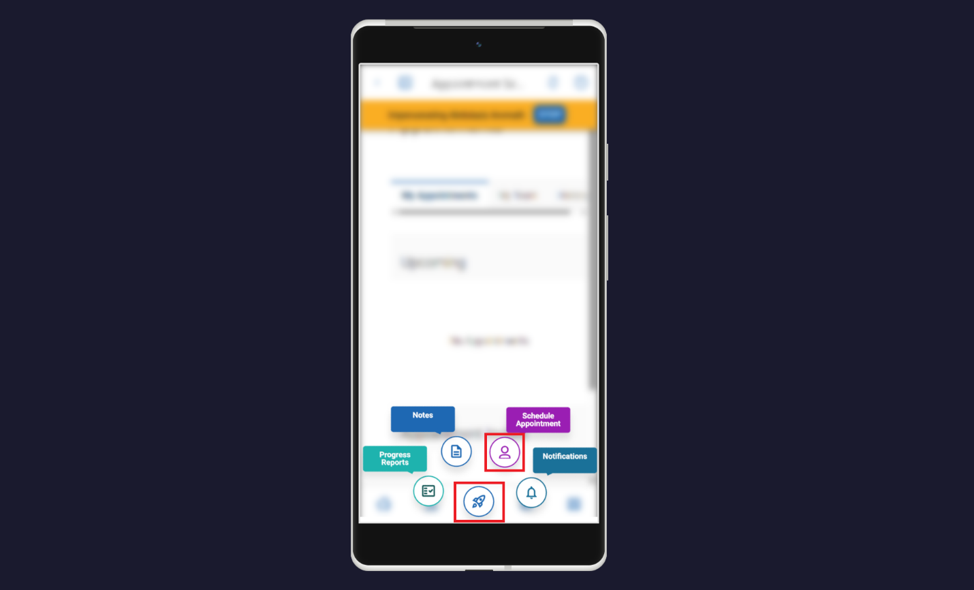
To schedule an appointment, select the quick actions button on the bottom navigation menu, then click the purple Schedule Appointment button.
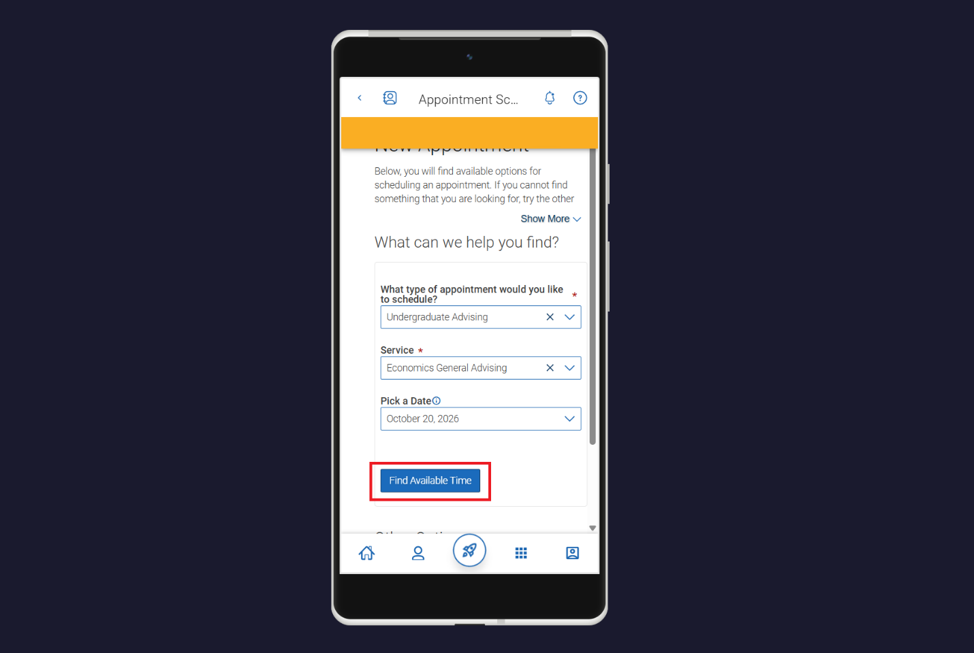
The New Appointment page opens. From the dropdown menus, select the appropriate type of appointment you’d like to schedule, service, and date. Click Find Available Time.
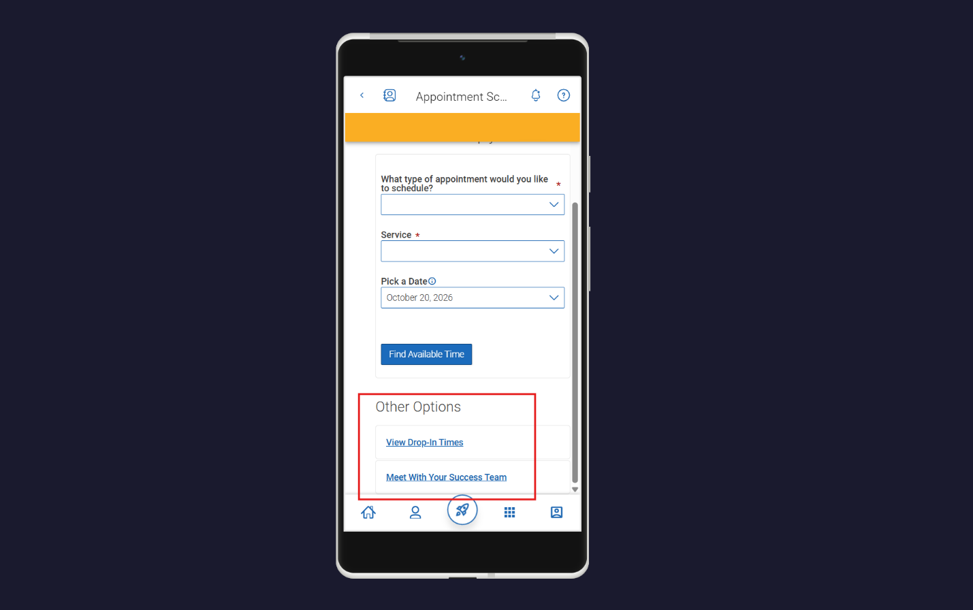
On this page, you can also view appointments for Drop-In Times or schedule an appointment with someone in your Success Team by scrolling down and selecting the appropriate button within the Other Options panel.
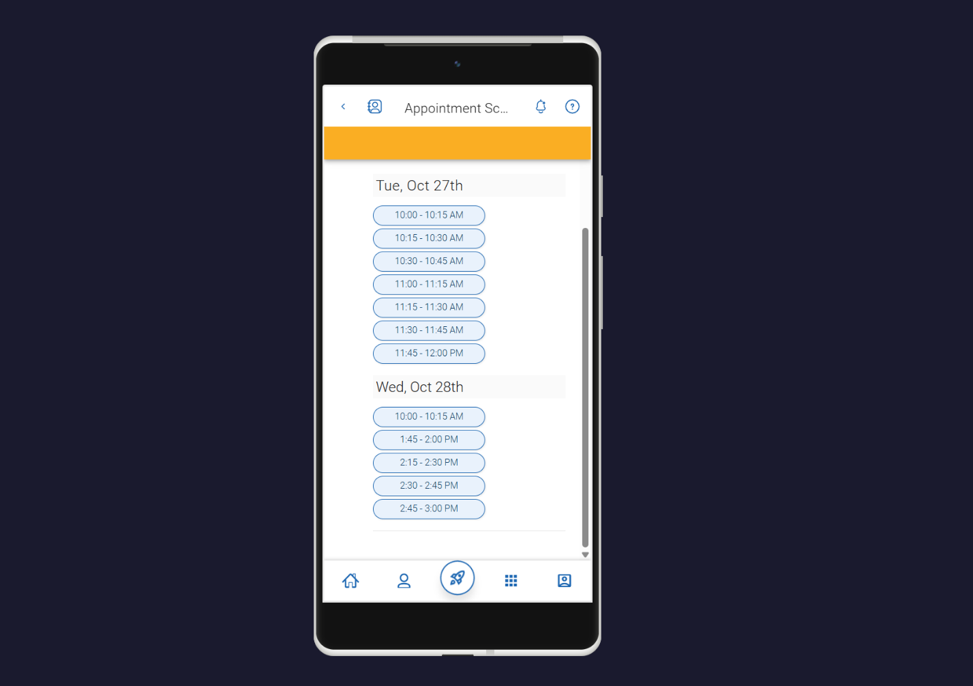
After completing the dropdown questions on the type of appointment, Service, and date, if there are available times, you will see those options on the next page. Select your date/time slot for your appointment.
Once you have selected your appointment slot, the Review Detail page opens. On this page, you can enter a comment (in some cases, the comment is mandatory) and decide if you’d like to have email or text reminders. Once all the options are set, click Schedule. Once the appointment is scheduled, you will receive a success message and the option to View Appointments or Schedule Another Appointment.
Navigate360 Student Desktop
Click the Applications button on the left-side navigation menu, then select the purple Appointments icon and answer questions about your preferred service, date, time, and location.
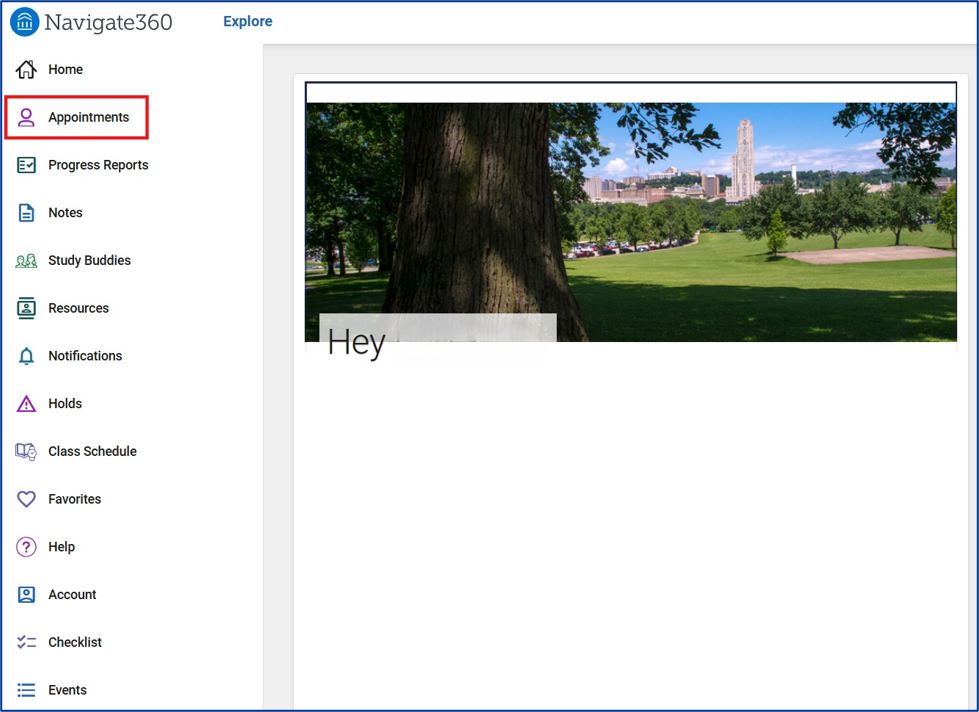
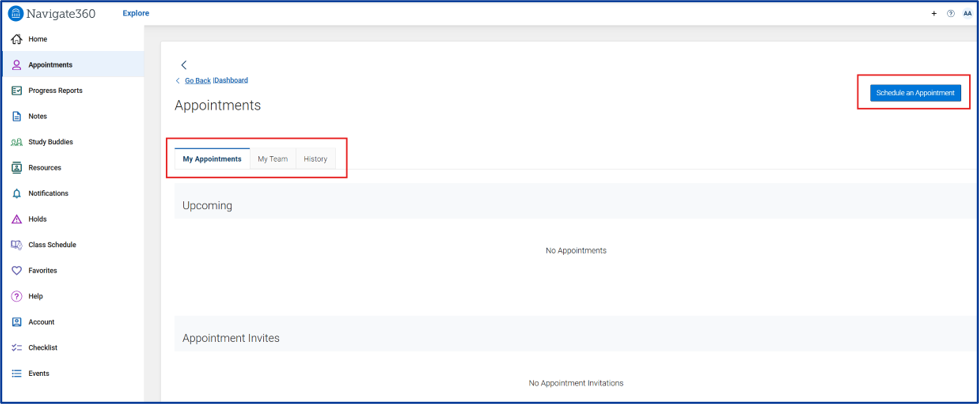
On the Appointments page, you will see a list of any upcoming appointments and appointment requests in the Upcoming panel, along with any Appointment Invites you may have received in the Appointment Invites panel. View past appointments by choosing the History tab. You can also schedule an appointment with anyone in your Success Team (such as your advisor) by selecting the My Team tab.
From this page, you can also schedule an appointment outside of your Success Team by selecting the blue Schedule an Appointment button.
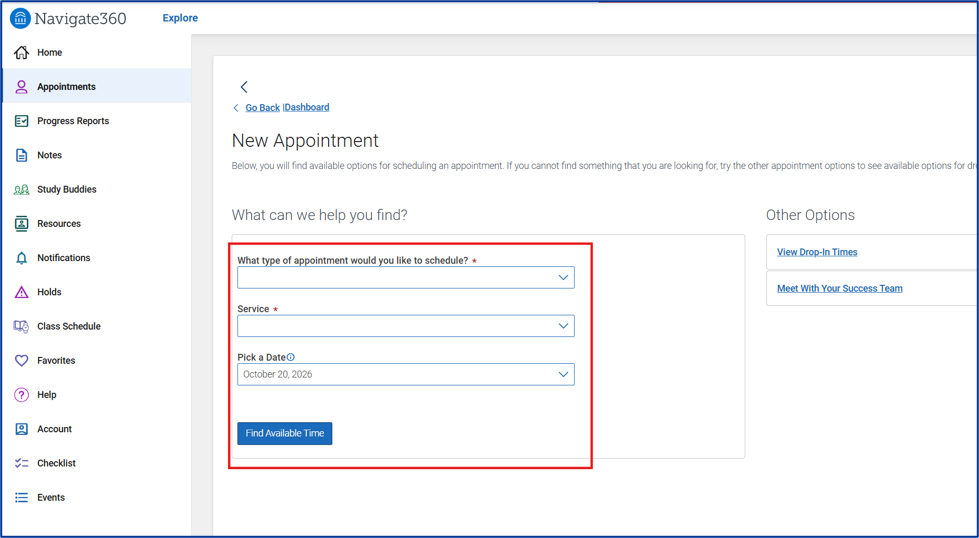
The New Appointment page opens. From the dropdown menus, select the appropriate type of appointment you’d like to schedule, service, and date. Click Find Available Time.
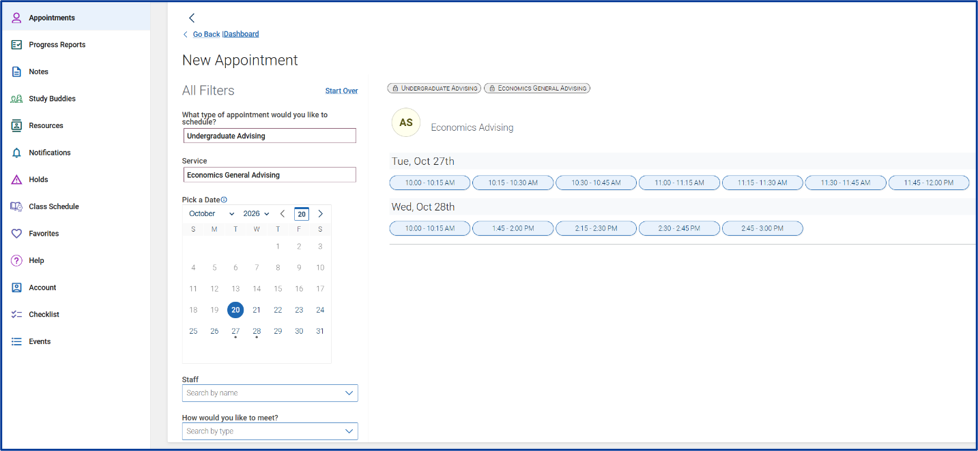
After completing the dropdown questions on the type of appointment, Service, and date, if there are available times, you will see those options on the next page. Select your date/time slot for your appointment.
Once you have selected your appointment slot, the Review Detail page opens. On this page, you can enter a comment (in some cases, the comment is mandatory) and decide if you’d like to have email or text reminders. Once all the options are set, click Schedule. Once the appointment is scheduled, you will receive a success message and the option to View Appointments or Schedule Another Appointment.
- How to Cancel an Appointment
Navigate360 Student Mobile App
Click the Applications button on the bottom navigation menu, then select the purple Appointments icon.
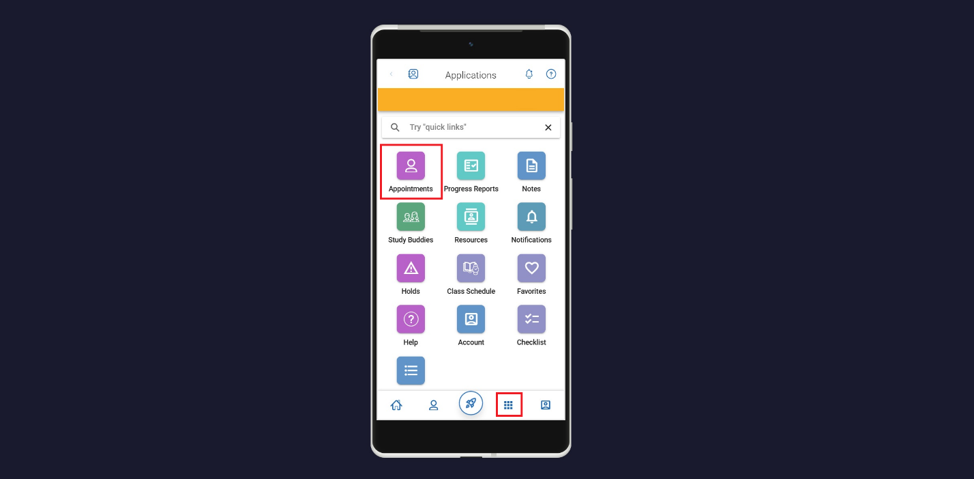
On the Appointments page, you will see a list of any upcoming appointments and appointment requests in the Upcoming panel. Select the appointment you would like to cancel. This will take you to the Appointment Details page.
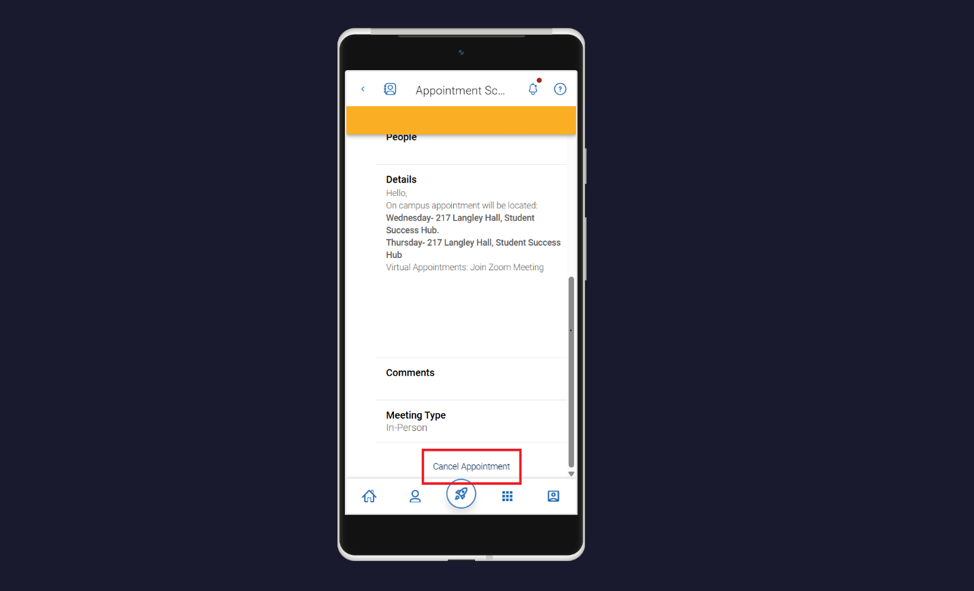
Scroll to the bottom of the Appointment Details page and select Cancel Appointment.
Navigate360 Student Desktop
Click the Applications button on the left-side navigation menu, then select the purple Appointments icon.
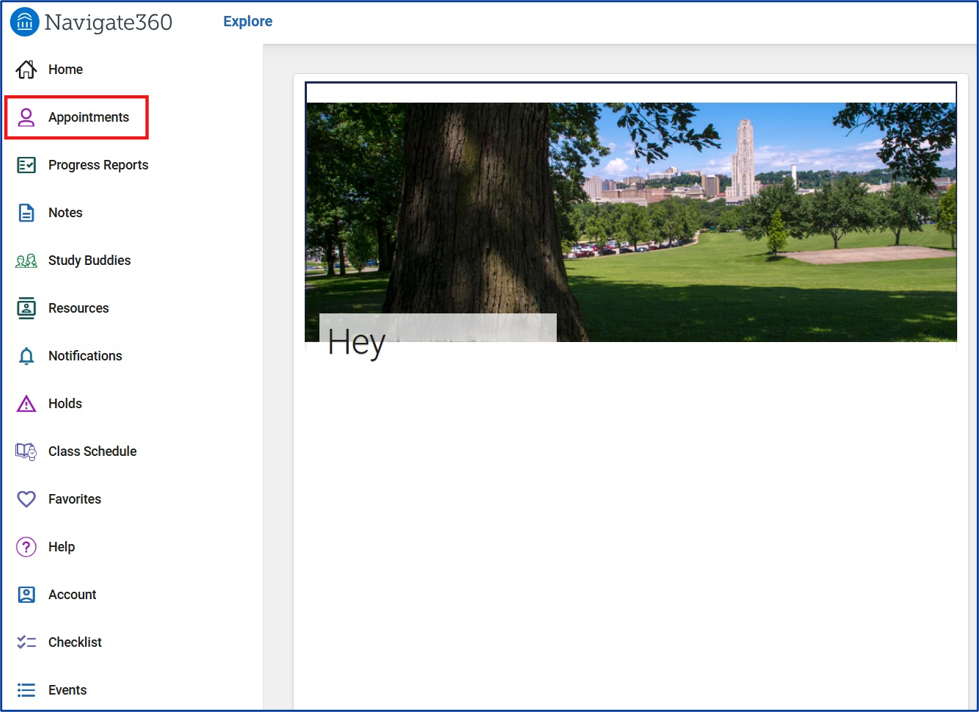
On the Appointments page, you will see a list of any upcoming appointments and appointment requests in the Upcoming panel. Select the appointment you would like to cancel. This will take you to the Appointment Details page.
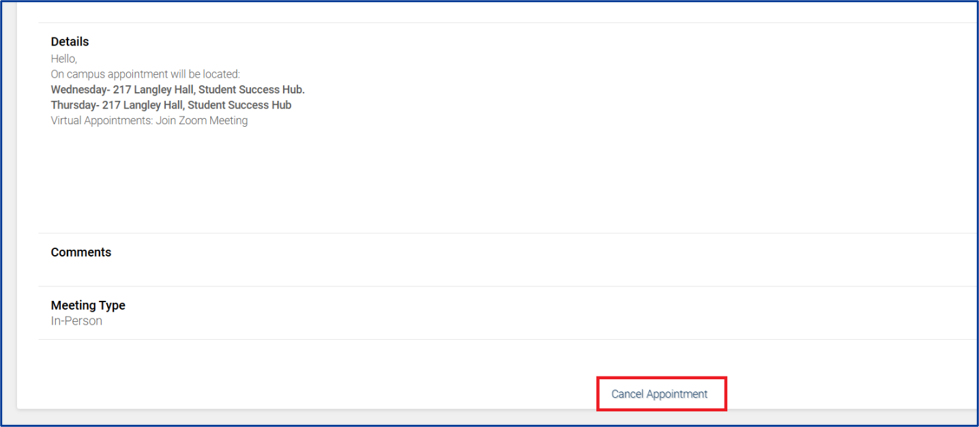
Scroll to the bottom of the Appointment Details page and select Cancel Appointment.
- How to Reschedule an Appointment
For both the Navigate360 Student app and desktop site, there is no option to “reschedule” an appointment. Instead, you will need to cancel the upcoming appointment you’d like to reschedule, then follow the steps (as outlined above) to schedule a new appointment.