How to Complete an Early Progress Report
This page provides information about how to submit Early Progress Reports for students. A downloadable version of these instructions are available at the bottom of the page.
Accessing the student feedback page
All instructors who received a request for feedback can access the Student Feedback Page by clicking the link contained in the Early Progress Report email request. The link can be found at the bottom of the email.

The Student Feedback page will open with a list of students in your class. If you teach multiple classes, they will be listed separately.
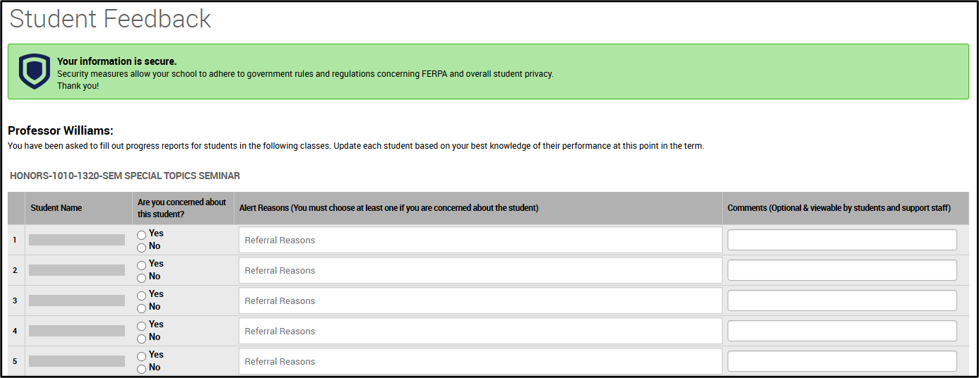
You do not have to provide feedback on all of your students right away. One strategy is to review the roster and first submit feedback for the students who you have immediate performance concerns for. After submitting feedback for marked students, you can return to the Student Feedback page at a later time to complete the progress report for additional students.
Marking students of concern
For students you are concerned about, select the Yes radio button in their row. After this, you must choose an Alert Reason from the drop-down menu.
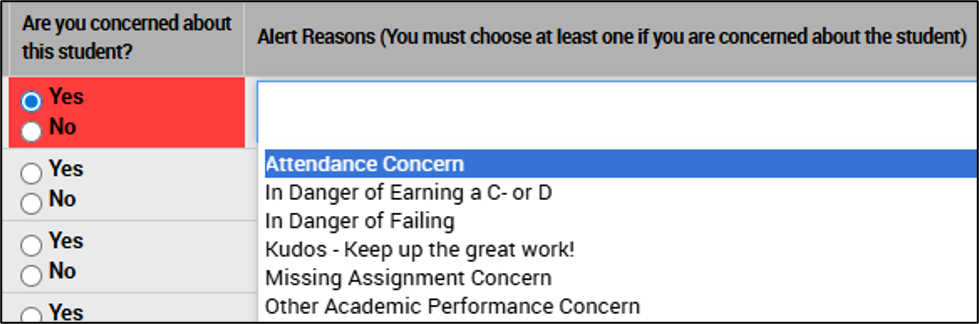
Note: You can select more than one alert reason. If you select the wrong one, you can use the backspace or delete button to remove the reason and re-select.
Next, include any optional Comments. These comments are visible to the students and their advisor or other university support staff, and should be written with this in mind.
Giving ‘Kudos!’ to students
Instead of, or in addition to, marking students of concern, you can give ‘Kudos!’ to students who are performing well, following a similar process.
Select the No radio button in their row. After this, use the Alert Reason drop-down to select the ‘Kudos-Keep up the great work!’ alert reason. Include any optional Comments.

Marking students not of concern
If you do not have any concerns about a student’s current performance, you can simply select the No radio button and leave the Alert Reason blank.

Submitting your feedback
After marking students ‘of concern’ or giving ‘Kudos!’, you have two options to submit your feedback:
- Submit only marked students, or
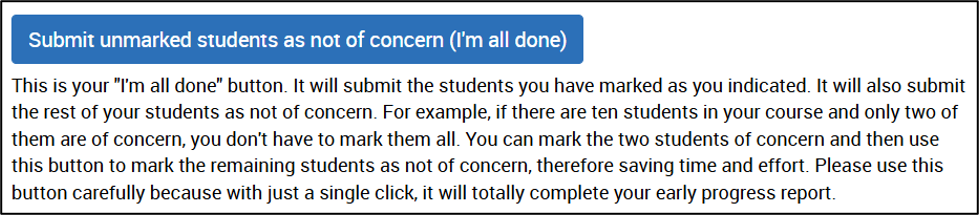
- Submit unmarked students as not of concern (I’m all done)
See the descriptions below to determine which option (button) you should use.
Note: The second option to ‘submit unmarked students…’ is a quick way to mark ‘no concern’ for all students you did not mark ‘yes, of concern’ or give a ‘Kudos!’