
About the Navigate360 Student App
Navigate360 Student is the student-facing experience of Pathways, which is used widely across Pitt by faculty, staff and academic leadership, to support advising/tutoring appointments, connecting students with various resources, centralizing communication between students and advisors, tracking student progress, and more!
Students utilize the Navigate360 Student app (or desktop) mainly for:
- Scheduling appointments with advisors and other support staff
- Receiving and viewing Early Progress Reports, including comments provided by Faculty, as applicable
- Accessing other features provided in the Navigate360 Student app, as listed in the Core Features below
Where and how to access the Navigate360 Student App:
- Download Navigate360 from your device’s App Store
- Search for University of Pittsburgh in the dropdown menu. Use your Pitt login credentials to log in.*
*only students who have completed the required steps to become an active student will be able to log into Navigate360.
Navigate360 Student App Core Features
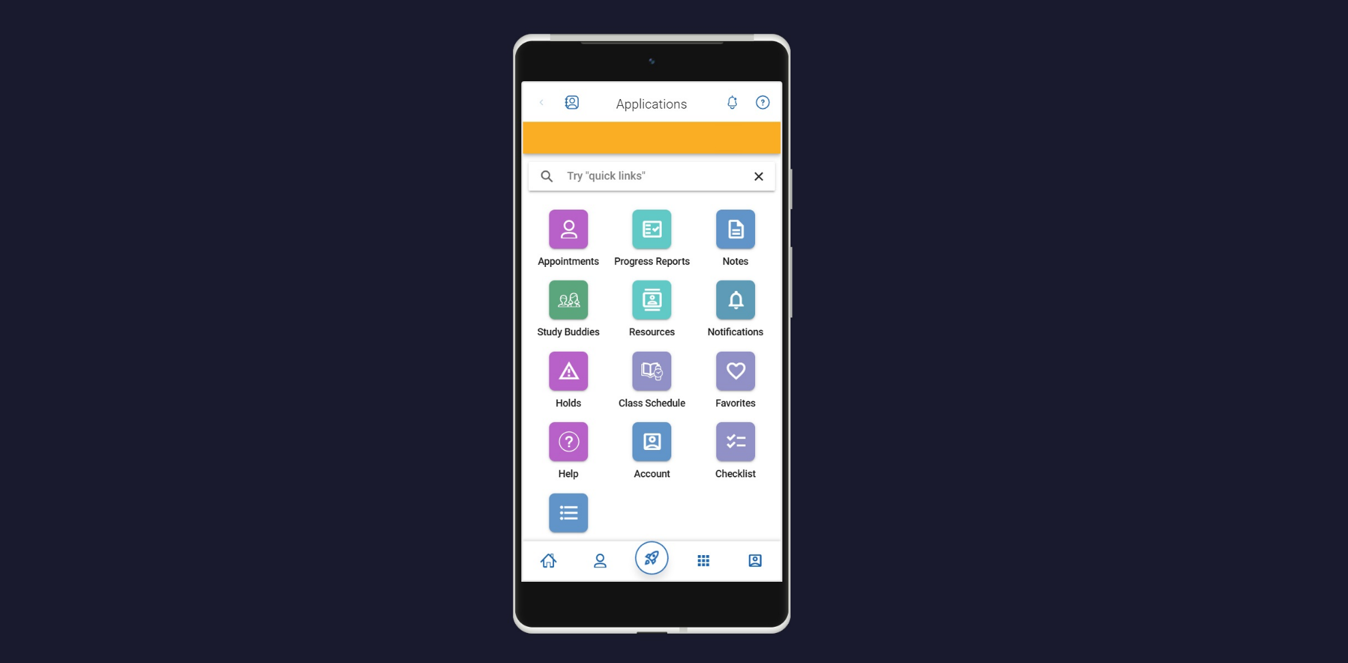
Students use Navigate360 Student to schedule appointments with advisors and other staff. Students can schedule and cancel appointments through the Appointments section of their Navigate360 Student mobile app. Appointments can’t be rescheduled directly. To change a time, students will need to cancel the existing appointment and schedule a new one.
Step-by-step instructions on how to schedule and cancel an appointment through the app can be found on the Navigate360 Student Appointment Scheduling page.
An Early Progress Report is a course-based request for feedback sent to instructors early in the term so they can flag how individual students are progressing academically. In Navigate360 Student, students can log in and see all submitted progress reports through the Progress Reports application, read comments faculty entered, and may receive alert/at‑risk emails. View detailed information on Early Progress Reporting on the Early Progress Report & Referrals page.
Students can access any Notes that have been made visible to them. When viewing the Note in the app, they will be able to see the Note Reason and any attachments included.
Study Buddies is available on the Navigate360 Student app and desktop. Study Buddies lets students connect with other students in their class sections who are interested in studying together outside of class.
Resources is a directory for students to learn about physical and digital resources.
All notifications are shown in the Notifications Center for To-Dos, Personal To-Dos, Study Buddies, Holds, and Academic Planning messages. On mobile, Appointment Question notifications also appear in the Notification Center. Opening the Notifications list shows all notifications currently in Navigate360 Student in the last 90 days. Notifications will be removed after 90 days.
The Holds Center informs students of holds on their account, provides information about the hold, and outlines clear action steps and resources to resolve the hold.
Students use Class Schedule to see the course section information for all the classes they are registered for in the current term.
Checklist lets students view personal To-Do’s along with any staff-assigned To-Dos.
In the Account application, students can access their information, notification settings, customize their home page, and schedule reminders.