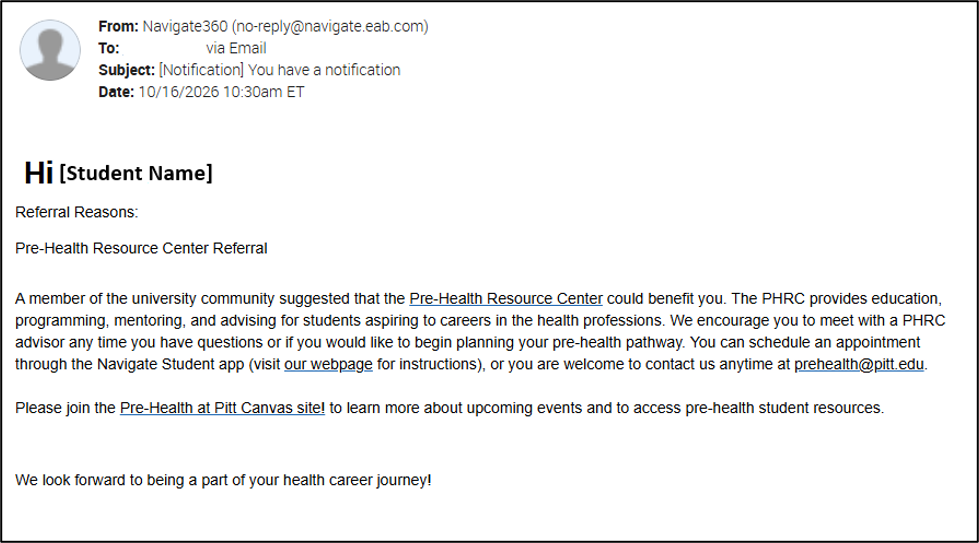
Early Progress Reports
An Early Progress Report (EPR) is a way for your instructors to share feedback about your progress early in the semester.
EPRs are designed to help students stay informed about their academic performance and engagement while there is still plenty of time to make adjustments, seek support, or continue building on positive habits.
Depending on the situation, an EPR may:
- Alert you to academic or engagement concerns that could affect your success in a course
- Encourage you to connect with your instructor, advisor, or campus resources
- Recognize your strong performance, effort, or engagement through a “Kudos” message
- Why Did I Receive an EPR?
Your instructor submitted an Early Progress Report to share feedback about your progress in the course.
An EPR may be submitted for one of the following reasons:
- In danger of failing
- In danger of earning a C- or D
- Attendance concern
- Missing assignments
- Other academic performance concerns
- Kudos – keep up the great work!
The goal of an EPR is to provide timely feedback that helps you stay informed about your academic progress and make the most of the resources available to support your success.
- What Should I Do If I Receive an EPR?
Review the notification email and log in to Navigate360 Student to view any comments from your instructor. Depending on the feedback, consider connecting with your instructor or academic advisor. You may also hear directly from your advisor, who can help you explore resources and support available to you.
Remember, whether an EPR highlights an area for improvement or recognizes your achievements, it provides information that can help you continue moving toward your goals.
- Where Can I View My EPR?
When an EPR is submitted, you will receive an email notification to your Pitt email address. The email will include the EPR reason in the subject line as shown below.
![Email from Navigate360 with subject line: "Missing Assignment Concern in [Course Name]"](/sites/default/files/inline-images/image_43.png)
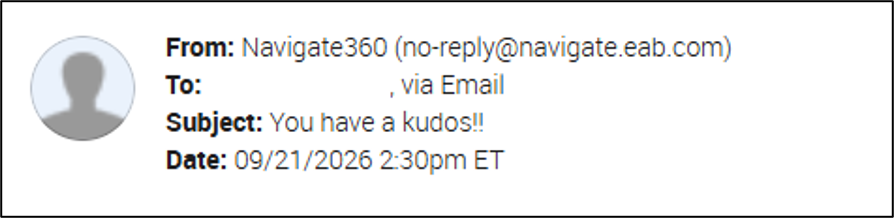
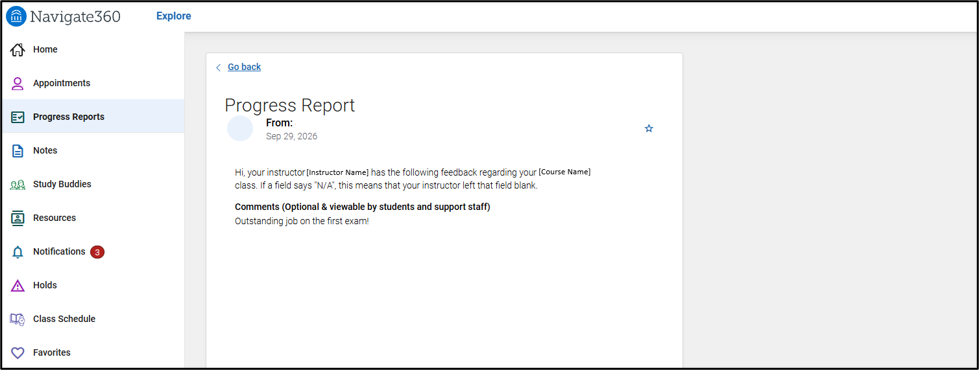
You can also view your Early Progress Reports and any faculty comments through the Navigate360 Student app or desktop.
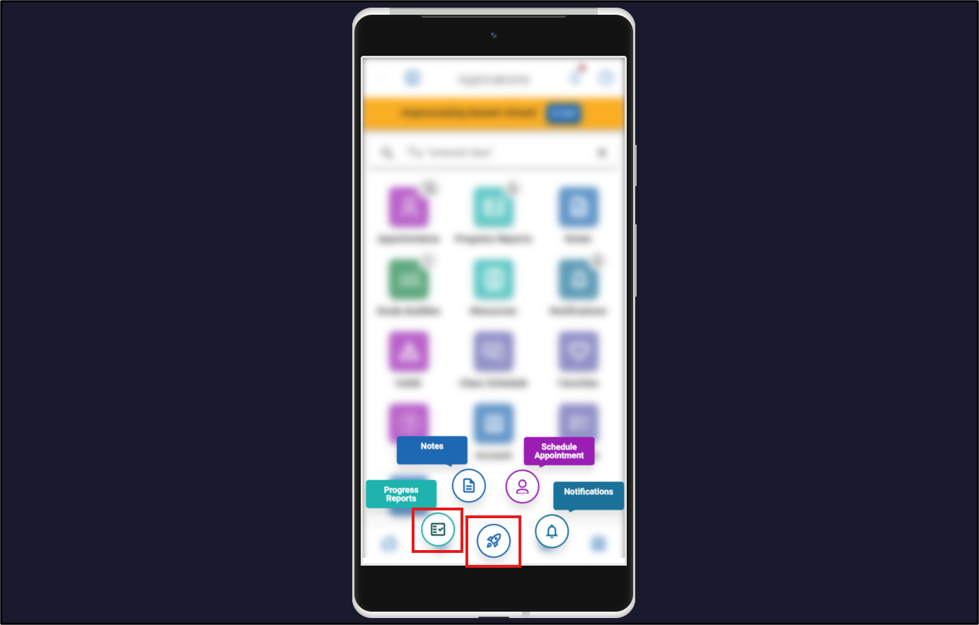
Navigate360 Student Mobile App
- Log in to your Navigate360 Student app, or click on the link in your email which directs you to the app.
- Select the quick actions button on the bottom navigation menu, then click the Progress Reports button.
- You will see a list of all early progress reports. You can filter your progress reports by course or date.
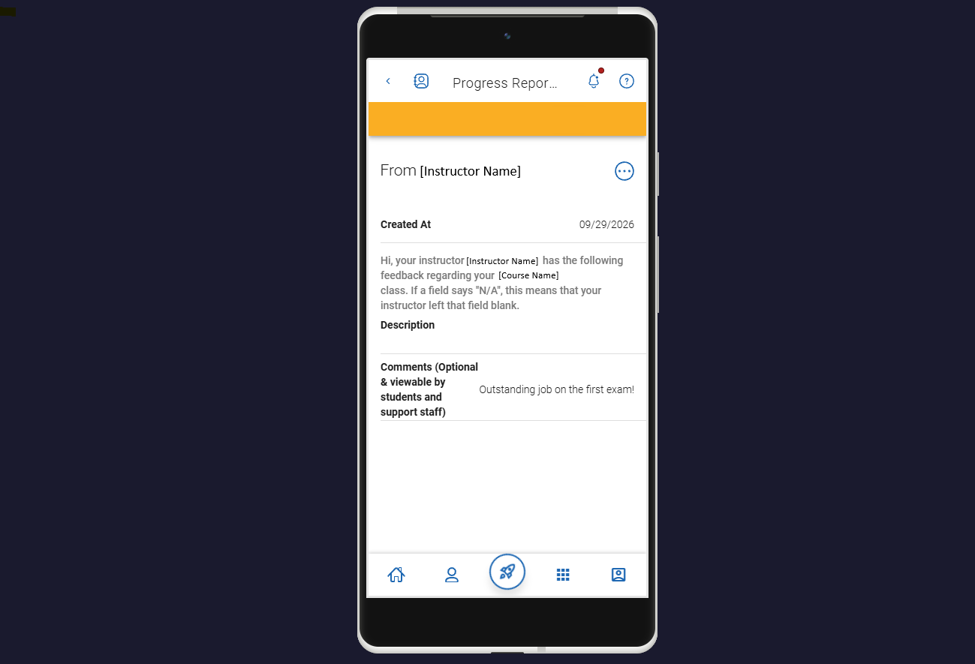
Navigate 360 Student Desktop
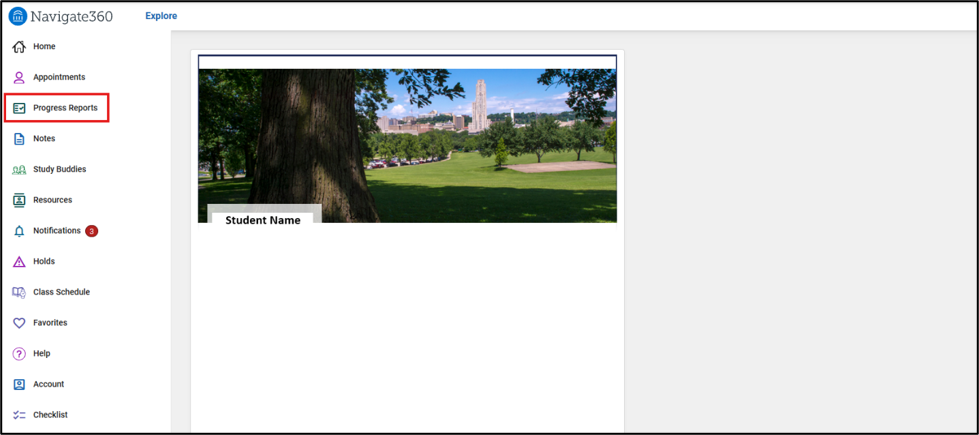
- Log in to Navigate360 on your desktop browser or click on the link in your email to open the site.
- Click the Progress Reports button in the left-hand menu.
- You will see a list of all early progress reports. You can filter your progress reports by course or date.
Referrals
A referral is a way for Pitt faculty and staff to connect students with support, services, and opportunities that may help them succeed.
Unlike Early Progress Reports (EPRs), which provide feedback about a student's progress in a specific course, referrals can address a broader range of needs and connect students with campus resources. Referrals may be related to academics, financial wellness, career exploration, study skills, student support, or other areas where additional guidance may be beneficial.
- What Happens When a Referral Is Submitted?
Depending on the type of referral, you may receive an automated email with information about a specific campus resource or service. Some referrals may also be reviewed by a student support team, advisor, or campus office. In these cases, you may receive outreach from a staff member who can help you explore options, answer questions, or connect you with additional resources.
- Where Can I View My Referrals?
Referrals that generate an automated email are sent directly to your Pitt email address.
Unlike Early Progress Reports, referrals are not displayed in the Navigate360 Student mobile app. Be sure to review automated referral emails carefully, as they may contain important information about resources, services, or opportunities available to you.