The instructions below can be followed to set up your availability for students to meet by Appointment only. It is recommended to set up separate blocks of availability if you would like to meet with students via Drop-In hours.
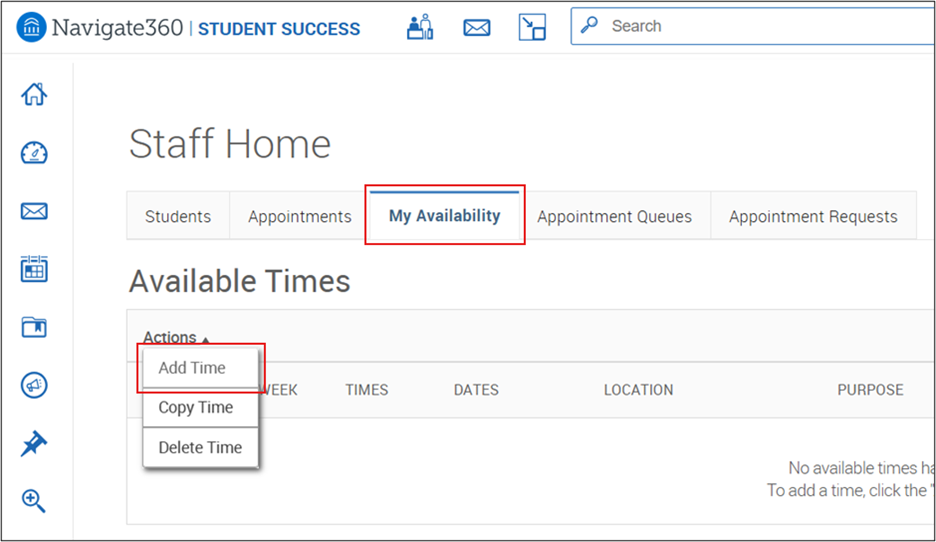
Log into Pathways and choose the My Availability tab on your Staff Home page. Under Available Times, use the Actions button to Add Time.
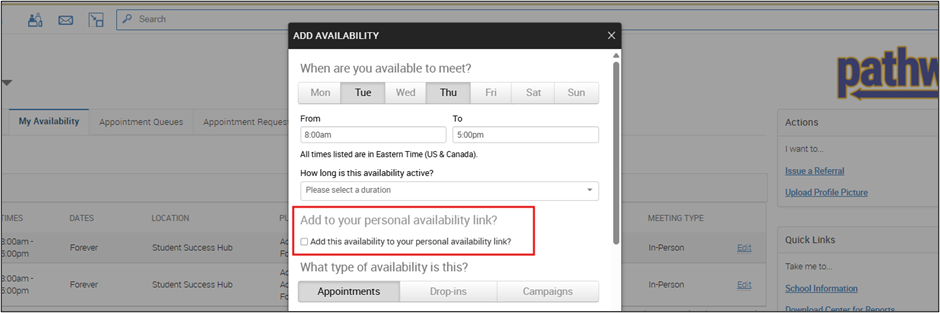
In the box that pops up, select the days and times you are available. To set the same availability for the entire term, choose the current term (Default Term) for the length of time to be active.* Then choose the Appointments option. (You’ll be able to add additional days and times in a later step.)
*Note: if you choose Forever, then your availability will continue during and in between terms, as well as summer.
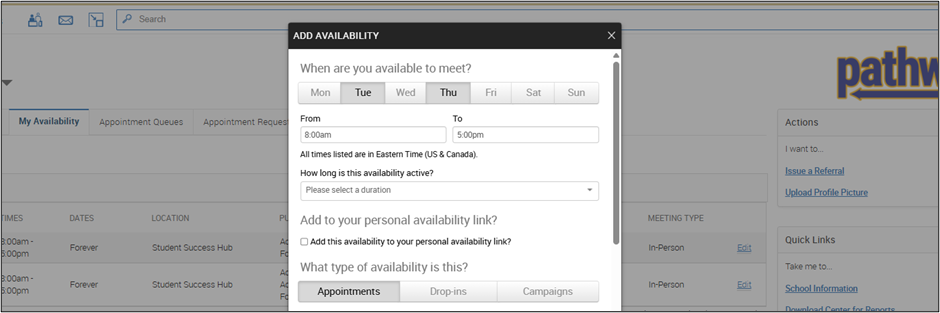
If you would like to create a link that can be posted on Canvas or that you can send to your students that will direct them to view your drop-in times, select the box to Add to your personal availability link, as seen below:
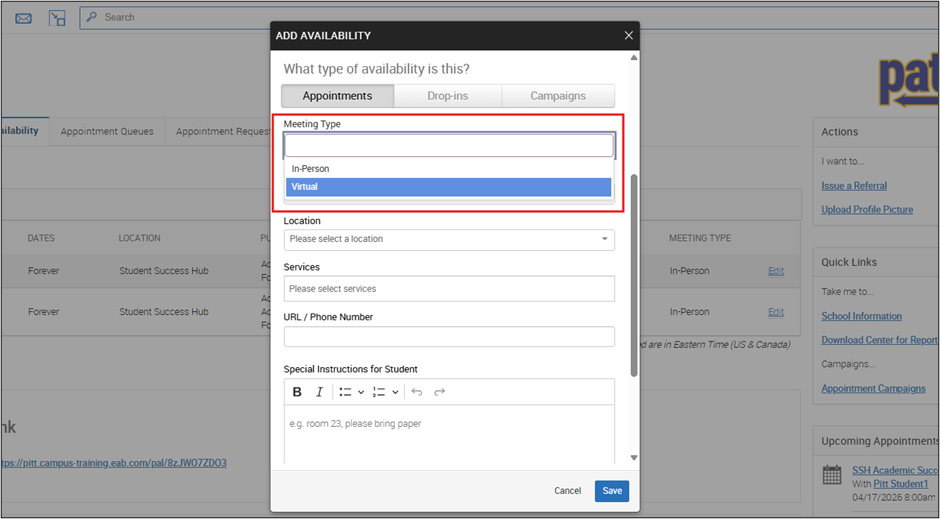
Select the type of meeting (In-person and/or Virtual).
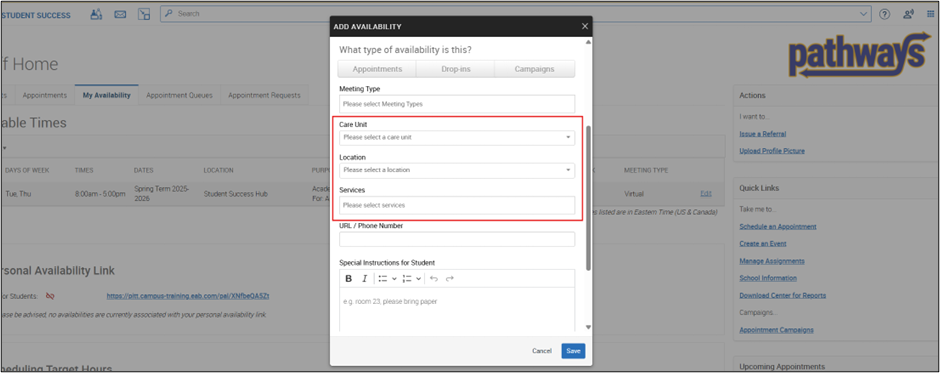
Make the appropriate selections from the Care Unit, Location and Services drop-down menus.
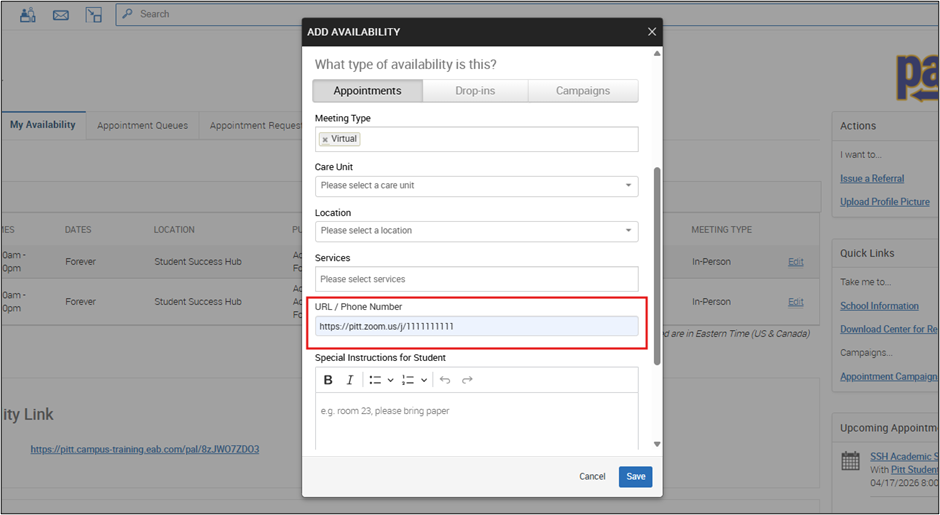
If you select Virtual meeting type, you can add a URL, such as your Zoom Personal Meeting ID (PMI) or phone number. This information will be sent to the student when they schedule the appointment.
Add any Special Instructions you would like the students to see when they are scheduling an appointment. The sample text you see here is included below in the Tip section if you would like to copy.
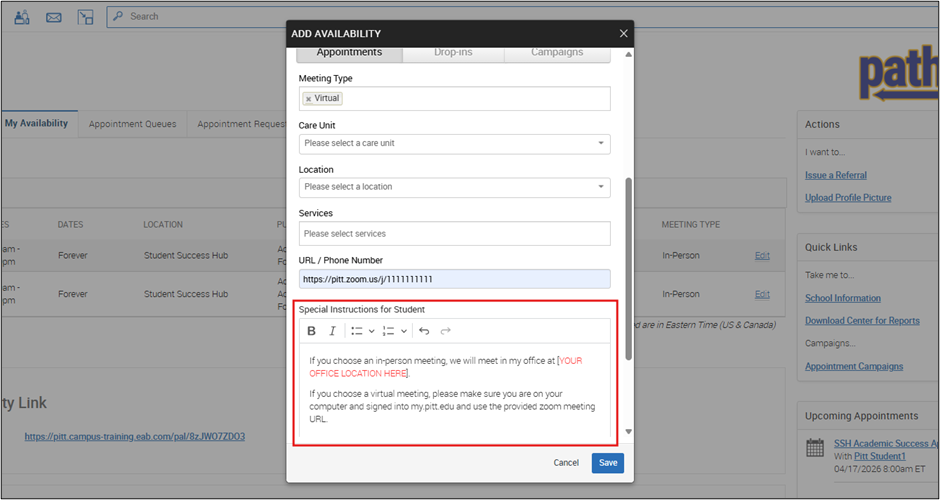
Tip: Include special instructions to provide the students with important information.
If you choose an in-person meeting, we will meet in my office at [YOUR OFFICE LOCATION HERE].
If you choose a virtual meeting, please make sure you are on your computer and signed into my.pitt.edu and use the provided Zoom meeting URL.
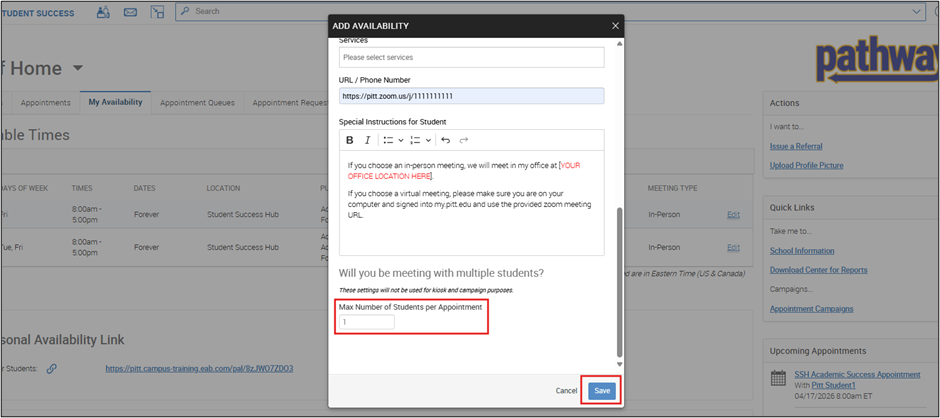
If you would like to have group appointments, you can adjust the Max Number of Students per Appointment, otherwise, leave it at 1 and Click the Save button.
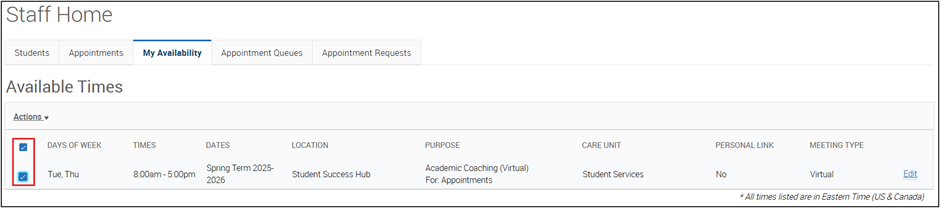
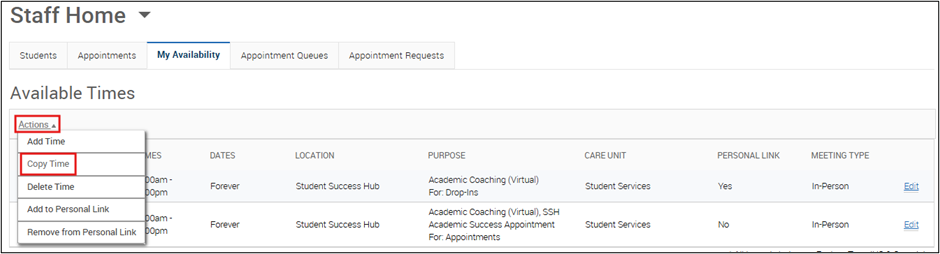
To add additional availabilities, select the checkbox beside the time you have created, and use the Actions drop-down to Copy this time. You can also use the blue Edit link to edit a specific block. You can have as much availability as you need.