Using the Pathways Advanced Search feature is helpful to find populations of students based on key data or student characteristics. This How-to guide takes a systematic approach to creating an Advanced Search by creating a common starting point and focusing on the three additional filter types: 1) additional category filters, 2) my students only filter and 3) the ‘Other’ academic filters.
Starting Point for an Advanced Search – Campus or Academic Level Filter
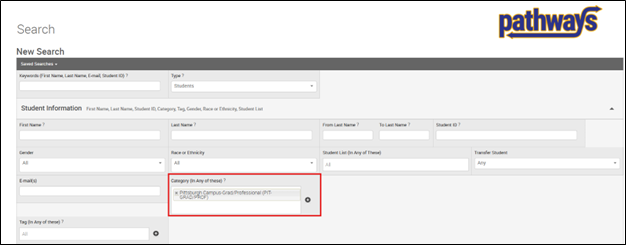
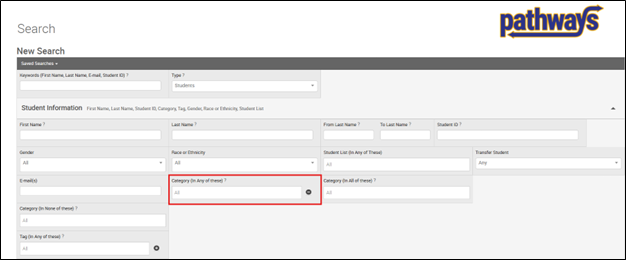
Most searches should start with your campus/academic level in the Category (In All of these) filter.
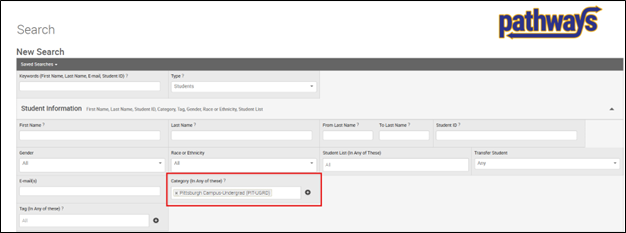
Or
Regional Campuses should use the Bradford Campus, Greensburg Campus or Johnstown Campus filters.
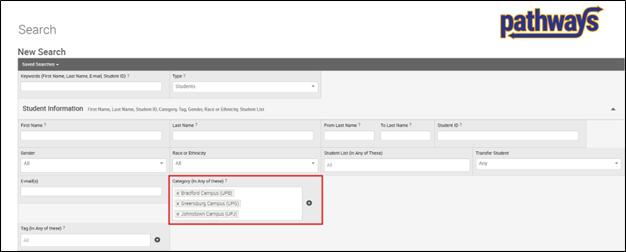
Doing this will set a baseline for the search so that only students in the selected category will be included in the results.
If you know your population of interest spans multiple schools or academic levels, you should include each of the campus/academic level filters in the (In Any of these) section.
Three Additional Filter Types in an Advanced Search
1) Additional Category filters.
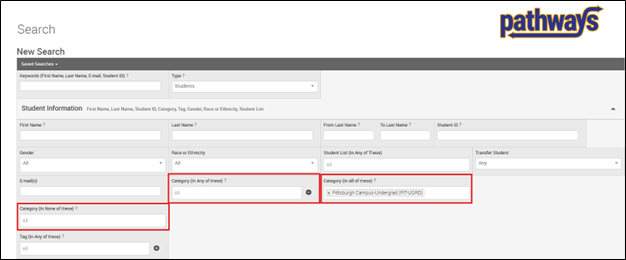
- In Any of These – This Category filter will ‘find’ students who are in at least one of any of the selected categories.
- In All of These – This Category filter will only ‘find’ a student if they are in every selected category.
- In None of These – This Category filter can be used to ‘find’ students who ‘are not/do not/have not’ met the category criteria.
2) My Students Only checkbox will further filter students so that only your assigned students will be ‘found’ via the search and included in your results.

3) Other Academic filters can be used to identify students based on:
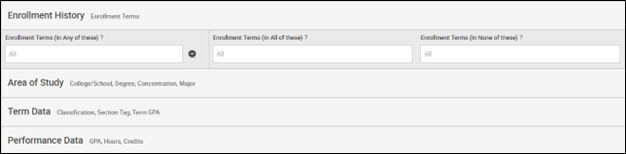
- Enrollment History – Being Enrolled (or not) in a term
- Area of Study – Major
- Term Data – How many credits they are enrolled in, in the selected term, or their previous term GPA
- Performance Data – Their cumulative GPA, total credit hours, credits attempted or % credits comp
Planning Your Advanced Search
To build your Advanced Search in Pathways, it may help to write your search down as a sentence:
“I want to find all of my students who do not have an advising hold, and who are not enrolled in the fall term.”
Then, identify the any/all of the three additional filters.
Note: You may have several additional category or other academic filters. Other academic filters may also not be necessary.

- My Students – My students only filter
- Not Have An Advising Hold – Additional category filter
- Not Enrolled in the Fall Term – Other academic filter
Tip: The green highlighted categories in the Campus Category Essentials Packs (see Categories and Tags page) provides some of the most commonly used additional category filters.
Building the Advanced Search in Pathways
Build the search by placing the categories and terms in the appropriate sections.
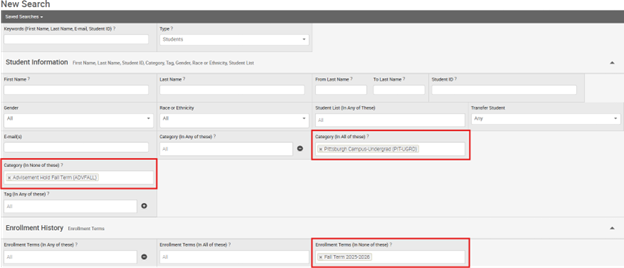
- Not have an advising hold – Select Advisement Hold Fall Term in Category (In None of these)
Campus/academic level starting point filter – Select appropriate campus in Category (In All of these)
Not enrolled in the fall term – Select Fall Term and academic year in the Enrollment Terms (In None of these)

See the guidelines below about when to use the (In Any of these), (In All of these) or (In None of these)
- Use (In Any of these) if you have several categories and you want to find students if they match at least one of the categories
- Use (In All of these) if you have several categories and you want to find students only if they ‘check all of the boxes’ (meet all of the criteria identified in all of the categories)
- Use (In None of these) if you want to find students in categories who ‘are not / do not / have not’
When creating an Advanced Search it is common to have to try multiple combinations until you get it right. (And it is encouraged to try multiple combinations to confirm your results.)
Saving Your Advanced Search
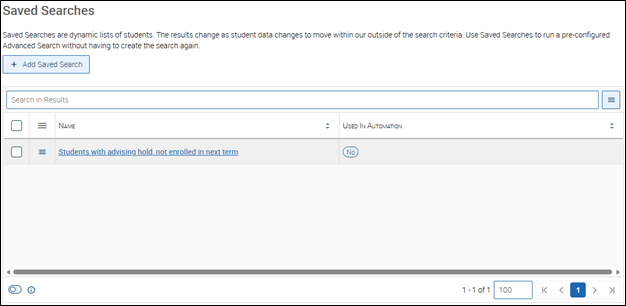
Saving your search is perhaps the most important part of Advanced Searching. This way you do not have to re-create your search the next time you want to identify this population of students.
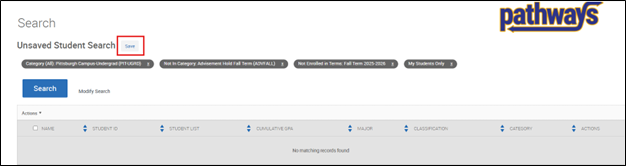
From the search results page, press the Save button.
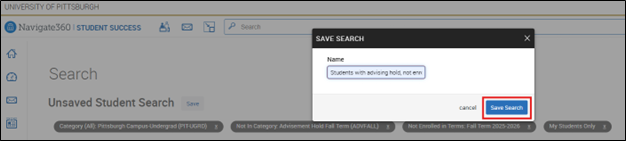
Name your list and press Save Search.
To access the list, go to your Lists & Saved Items page from the left-hand menu.

From here, you can access the search to view results and also update and re-save as needed.