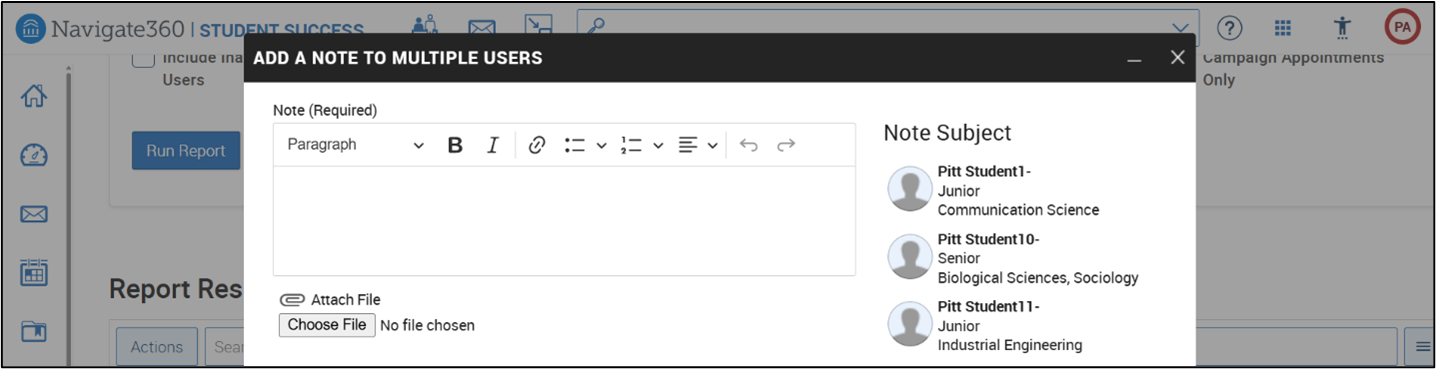
Parts of a Note
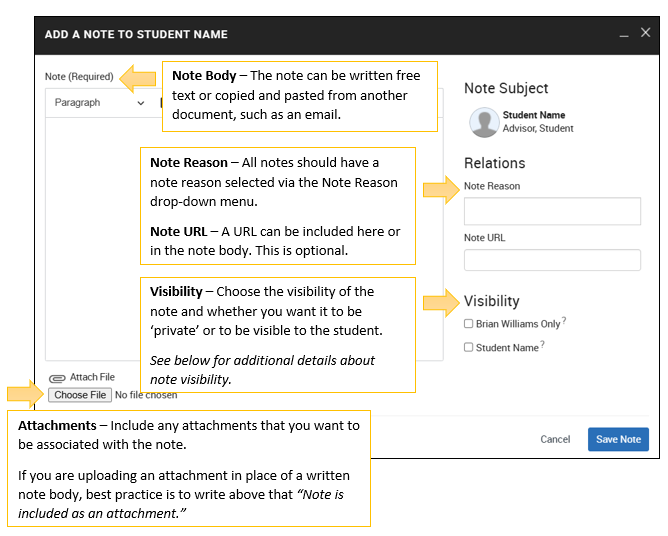
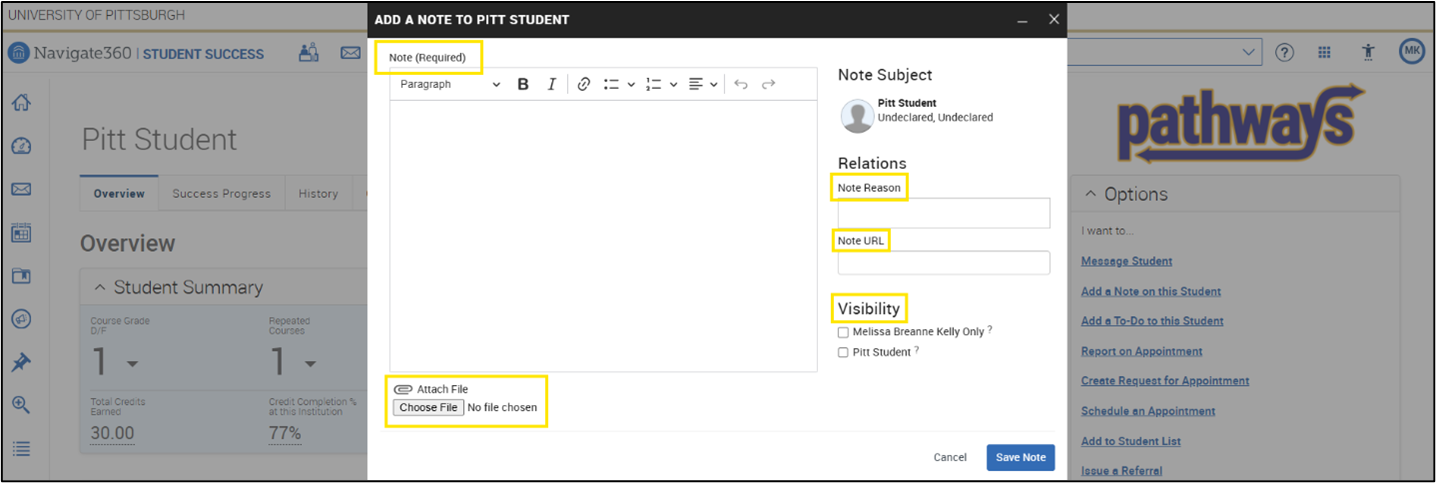
- Note Body – The note can be written free text or copied and pasted from another document, such as an email.
- Note Reason – All notes should have a note reason selected via the Note Reason drop-down menu.
- Note URL – A URL can be included here or in the note body. This is optional.
- Visibility – Choose the visibility of the note and whether you want it to be ‘private’ or to be visible to the student. See below for additional details about note visibility.
- Attachments – Include any attachments that you want to be associated with the note.
If you are uploading an attachment in place of a written note body, best practice is to write above that “Note is included as an attachment.”
Additional Details About Note Visibility
- By default, all notes are visible to any staff or faculty who completed the required FERPA training to receive access to Pathways.
- Selecting the box to make the note ‘private’ (only visible to the author) does not exclude the note from a FERPA request. Also, university administrators and others who have access to view notes marked as ‘private’ may be able to see the note.
- Making the note visible to the student means that the student can see the note in the Reports section of the Navigate360 student app, however they do not receive a notification that the Note has been added.
Adding a Note on a Student
Notes can be added to document information about a student or that you have shared with the student, or a specific topic of conversation that you had with the student. They differ from Appointment Summaries which should be used to document the general details of a meeting that you had with a student. Notes can be added in several different places across the platform.
FROM THE STUDENT’S PAGE
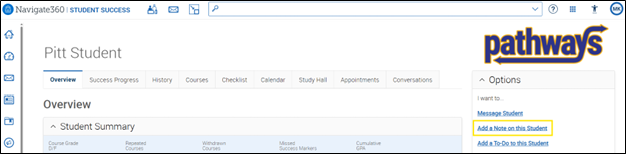
From the student’s page, select the Add a Note on this Student link from the Options container.
FROM YOUR ASSIGNED STUDENT LIST, OR AN ADVANCED SEARCH OR REPORT
Select the student(s) you would like to add a note for and using the Actions drop down menu, select the Note option.
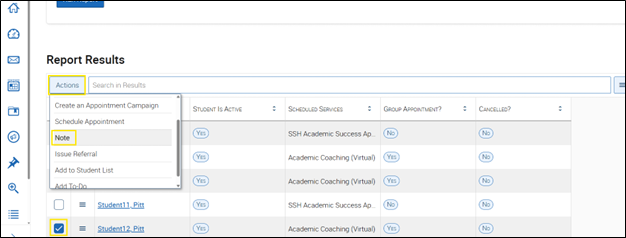
This is the easiest way to add a note for multiple students (up to 100 students) at the same time. Like messaging, the note appears to be added to each student individually.