Staff To-Dos allow staff and faculty to create action items for their students in the platform that students can then manage in the mobile app. To-Dos can also be used as short personal reminders for staff and faculty about items they want to follow-up on with the student in the future.
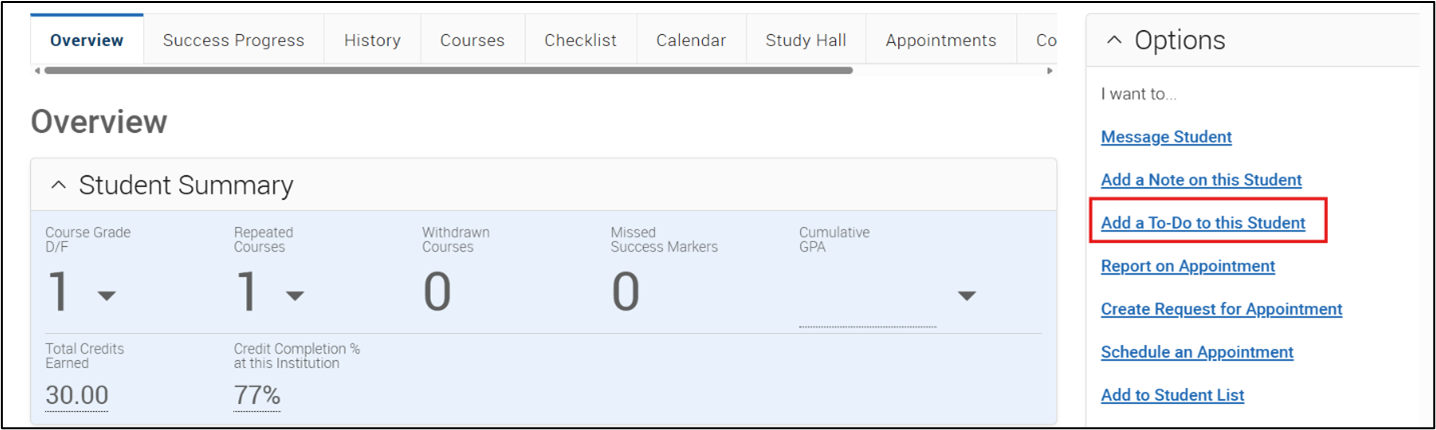
To-Dos can be added by selecting Add a To-Do to this Student from the options container on a student’s page. To-Dos can also be added by using the Actions button from your assigned student list, an advanced search or a report.

You will be prompted to set up the To-Do via a new window. See the next page for a description of the necessary sections to add the To-Do.
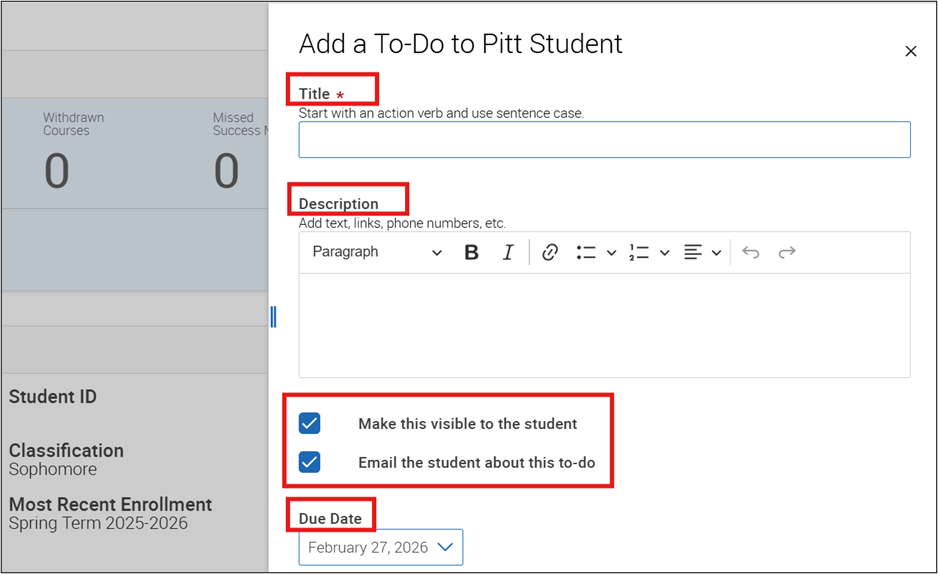
- Title – You must add a title which will appear in the to-do similar to a subject line in the email.
- Description – Provide the details about what the student is expected to do. Include helpful links. If this to-do is meant as a reminder for yourself, you do not need to include a description.
- Make this visible to the student – Making the to-do visible to the student will add to the Navigate360 student mobile app as an actionable item that the student can mark as being completed. If this is not selected, the student will not be able to see the to-do in the app, and instead will make the to-do act as a personal reminder for the staff member.
- Email the student about this to-do – Selecting this will generate an email to the student with the details of the to-do. You cannot email the student about the to-do if you do not make if visible to them.
- Due Date – This date selected here will determine where the to-do is ‘listed’ in the app and staff website. To-dos appear in chronological order based on the due-dates.
Note – Staff to-dos must be marked as completed by either you or the student, or else they will continue to show up on your page as an ‘overdue’ to-do. Because of this, the purpose and volume of to-dos you add to the platform should be taken into consideration.
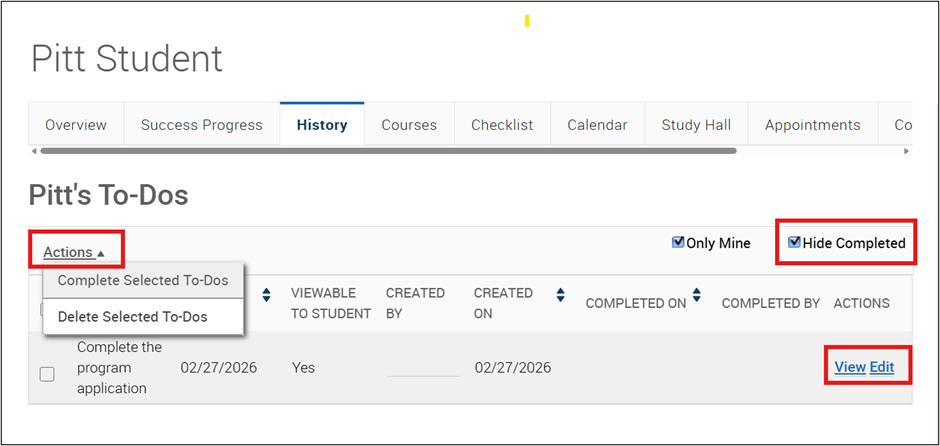
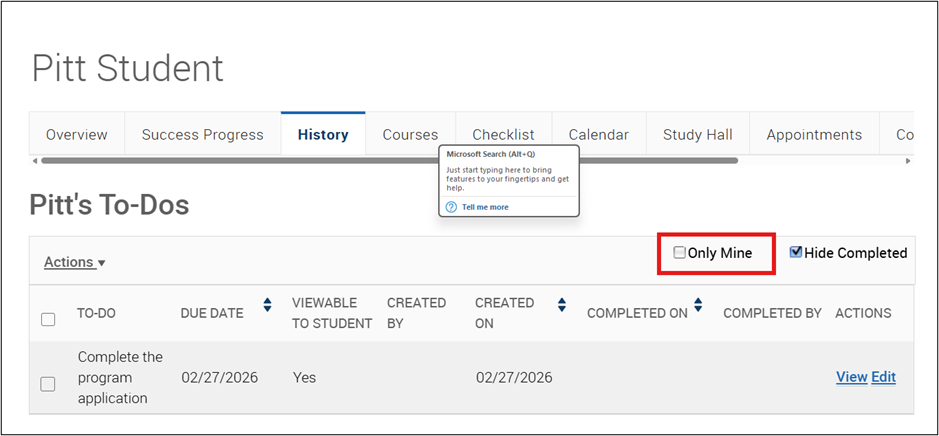
To-dos for added by staff will show up on the student’s History Tab. Here you can toggle to hide or show completed to-dos.
To manage the to-do use the Action drop-down menu to mark a to-do as complete or to delete a to-do.
You can also view the to-dos full details and edit it.
Note – Based on their role, other platform users, such as administrators and supervisors, may have access to view the to-dos that you create for students when viewing the student profile.
To access all of the to-dos that you have created, select the To-Dos icon from the left-hand menu.
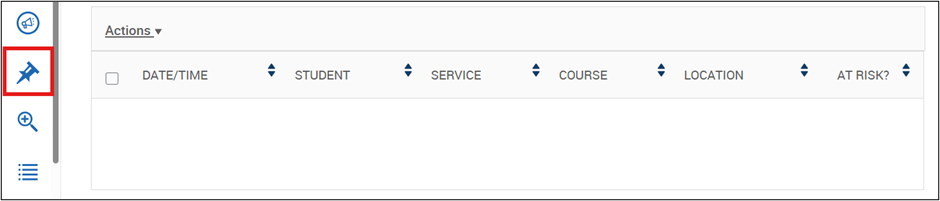
From here, you can complete all the similar actions available for to-dos on the student page and see a complete history of staff to-dos that you have added.